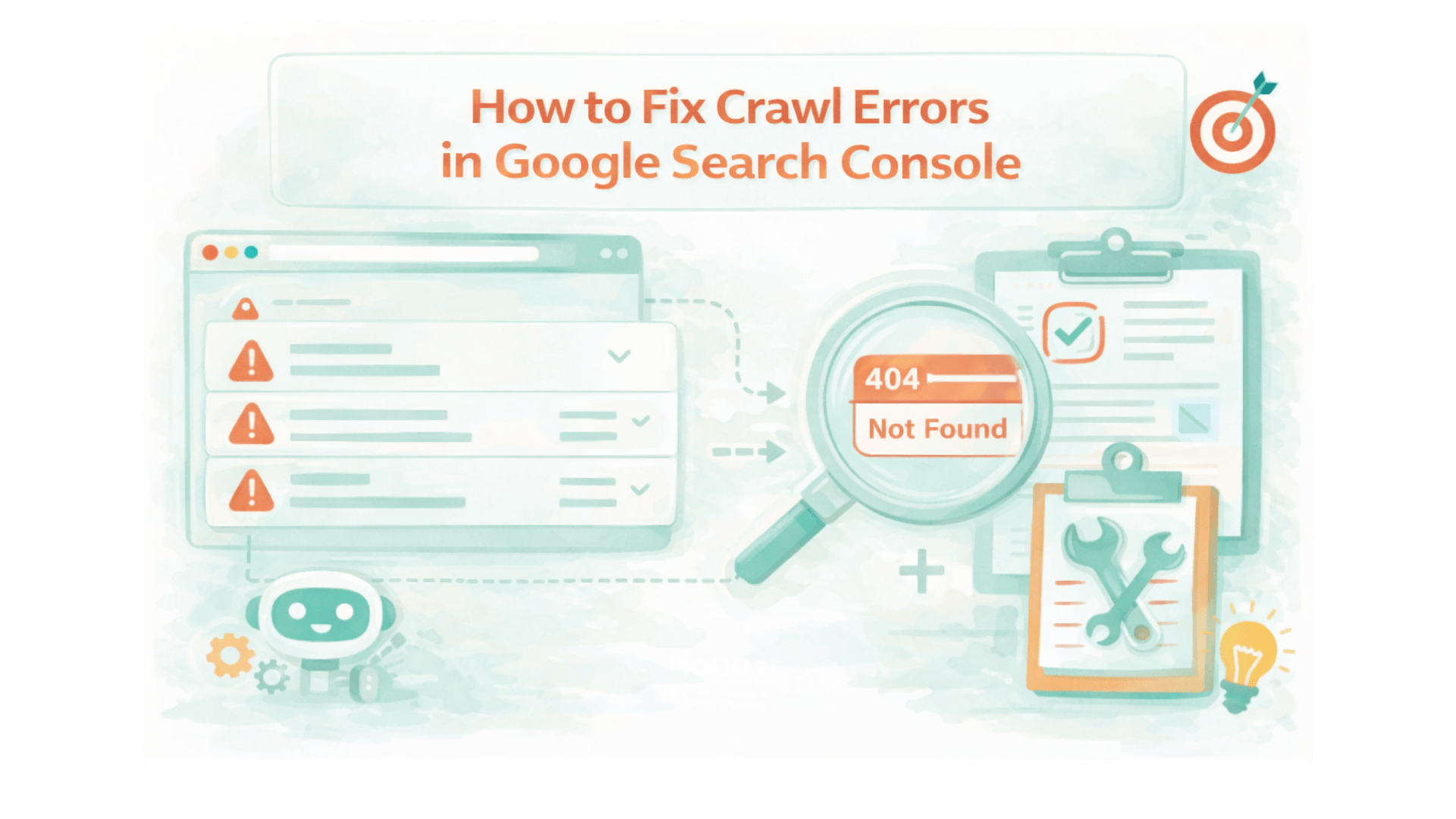
How to find and fix crawl errors in Google Search Console
Crawl errors happen when Googlebot tries to reach a URL on your site and something breaks. A page might be missing, the server could hiccup, a redirect might loop back on itself, or robots.txt could block the crawler entirely. Leave these errors sitting and pages won’t get indexed. Traffic leaks away. Your site’s crawl budget gets wasted.
This guide shows you how to use Google Search Console to find, diagnose, and fix crawl errors that matter. We’ll walk through the Pages report, the URL Inspection tool, common error types, and a repeatable workflow for validating fixes. Whether you’re new to technical SEO or have been troubleshooting sites for years, you’ll find something here.
Key takeaways
- Crawl errors occur when search engines cannot access a URL on your website, which prevents the page from being indexed.
- The Pages report within Google Search Console details problems like 404 Not Found errors, 5xx server errors, and redirect loops.
- The standard fix workflow: identify an error in GSC, apply the right technical fix (like a 301 redirect), then use the “Validate Fix” button to request re-checking.
- A clean XML sitemap, regular broken link audits, and a clear redirect policy prevent most crawl errors before they happen.
What are crawl errors, and why do they impact SEO?
When Googlebot tries to fetch a specific URL and hits a wall, that is a crawl error. The crawler reports the failure back to Google Search Console. Sometimes the problem is temporary, like a brief server outage. Sometimes it is permanent, like a deleted page that still has links pointing to it.
Why crawl errors hurt your site:
- Your crawl budget gets wasted. Google may retry broken URLs instead of discovering important pages.
- Pages cannot be indexed if Google cannot crawl them. They will not appear in search results.
- Users hit error pages and leave. Bounce rates climb. Engagement signals drop.
A step-by-step guide to fixing crawl errors in Google Search Console
Below is the core workflow. Find errors. Fix them. Analyze individual URLs. Validate your fixes so Google knows to re-crawl.
Step 1: How to find errors in the Pages report
- Log in to Google Search Console for the property you manage.
- In the left-hand menu, go to Indexing.
- Click on Pages.
- Scroll to the chart and the table labeled “Why pages aren’t indexed.”
The chart shows indexed versus not indexed pages over time. Spikes often follow site changes. The table lists categories like server errors, redirect issues, and URLs marked “noindex.” Click any error type to see which URLs are affected.
Pay attention to status differences. “Error” means Google tried to index but failed. Prioritize those. “Excluded” often means Google intentionally left the page out for reasons like canonicalization or noindex tags. These are not always urgent.
Step 2: How to fix the most common crawl errors
Click an error type in the Pages report to see affected URLs. Copy a few representative ones and paste them into the URL Inspection tool to confirm how Google sees them. Below are the main error types, their causes, and fixes.
Server error (5xx)
Cause: The server failed to respond correctly. This could be an outage, a resource limit, or a misconfiguration.
Fix: Check for site outages and monitor server health. Review server logs to find spikes in errors. If your host provides performance metrics, look for CPU, memory, or process limits being hit. Contact your hosting provider or operations team if it is beyond your control. Use the URL Inspection tool to test the live URL after any fix and confirm the response is clean.
Not found (404)
Cause: The requested URL does not exist. Pages get deleted, slugs change, links have typos.
Fix: If content moved, implement a permanent 301 redirect from the old URL to the new one. If you deleted the page intentionally and have no replacement, remove it from internal links and sitemaps. If external sites link to the deleted page, consider redirecting to a relevant replacement instead of a generic error page.
Submitted URL seems to be a soft 404
Cause: The page returns 200 OK but Google thinks it is essentially empty. The content lacks substance.
Fix: If the page should not exist, return a proper 404 or 410. If it is legitimate, add real content so it provides clear value. Include internal links to the page and review the template. Make sure it outputs meaningful content, not just thin boilerplate.
Redirect error
Cause: The URL sits in a redirect chain that is too long, there is a loop, or it points to a dead target.
Fix: Use a redirect checker to map the whole chain. Update the redirect so the old URL points directly to the final destination. No intermediate hops. Eliminate loops by ensuring each URL points forward, never back. Keep redirects simple and purposeful.
Blocked by robots.txt
Cause: Your robots.txt contains a Disallow rule that prevents bots from fetching the page.
Fix: Edit robots.txt and remove the rule blocking that URL if you want it crawled. Use the robots.txt Tester in Google Search Console to confirm the change. If the file lives on a CDN or edge server, clear caches so crawlers get the updated version.
Submitted URL marked ‘noindex’
Cause: The page is in a sitemap or was submitted, but the page itself has a noindex meta tag or X-Robots-Tag header.
Fix: Remove the noindex directive from the HTML or HTTP header if you want it indexed. If the directive is intentional, remove the URL from sitemaps and internal links. Do not send mixed signals to search engines.
Crawled, currently not indexed
Cause: Google crawled the page but chose not to index it. Usually because it is duplicate, thin, or low value.
Fix: Improve it with substantial, unique content and strong on-page signals. Add structured data where it fits. Pull internal links from higher-authority pages on your site. If the page is intentionally low value, consider marking it noindex so Google stops spending time on it.
Discovered, currently not indexed
Cause: Google knows the URL exists but has not crawled it yet. Usually crawl budget or low priority is the issue.
Fix: Make the page more discoverable. Link to it from relevant, high-authority pages on your site. Ensure it appears in your sitemap. Improve overall site speed and authority so Google allocates more crawl time to your domain.
Step 3: Dig deeper with the URL Inspection Tool
- Copy a URL from an error list in the Pages report.
- Paste it into the search bar at the top of Google Search Console.
- Review the inspection result for crawl status, last crawl date, and declared canonical.
- Click “Test Live URL” to see how Google renders the page and whether the live response has issues.
The URL Inspection Tool is the best way to understand what Googlebot actually saw and when. It shows whether the page is blocked, which status code was returned, whether JavaScript rendered, and any gaps between the live view and the indexed view. Use it to validate fixes before asking Google to reprocess the URL.
Step 4: Validating your fixes in Google Search Console
- After you fix the issue across all affected URLs, go back to the error detail page in the Pages report.
- Click the error type and then the “Validate Fix” button.
- Confirm you have applied the fix to all listed instances and submit the request.
The Validate Fix button tells Google to re-crawl and re-evaluate the affected URLs. Expect the process to take a few days up to a few weeks. It depends on the number of URLs and Google’s crawl schedule. Google will monitor the URLs over time and notify you by email when validation starts and when it ends, telling you whether it succeeded or if more work is needed.
Proactive strategies to prevent future crawl errors
Fixing errors matters. Preventing them is better.
Keep your XML sitemap clean and up to date
- Limit the sitemap to your most important, indexable pages. Treat it as a map for what you want Google to prioritize.
- Only include URLs that return 200 OK. Remove redirects and error URLs.
- Update the sitemap dynamically when pages are removed so it does not point to dead content.
- Resubmit the sitemap in Google Search Console after major changes like site migrations or category pruning.
Run regular audits for broken links
Broken internal links are a leading cause of 404s and wasted crawl time.
- Use site crawlers like Screaming Frog or the Site Audit feature in Ahrefs to find broken links and HTTP errors.
- Run a crawl after every major content update and on a routine schedule. Monthly for high-traffic sites, quarterly for smaller ones.
- Fix internal links first. They are the easiest to control and they help Google discover pages.
Set up a clear redirect policy
- Define when to use a 301 redirect versus allowing a page to return 404 or 410. Use 301 for moved content with direct replacements.
- Always implement a permanent 301 from the old URL to the new one. Avoid chains of temporary hops.
- When a page is deleted with no replacement, let it return 404 or 410 and remove internal links and sitemap entries.
- Do not redirect all broken links to the homepage. That masks the problem and looks like a soft 404 to search engines.
Conclusion
Crawl errors are normal. They do not have to be a nightmare. Find issues in the Pages report. Diagnose problematic URLs with the URL Inspection tool. Apply the right fix. Use Validate Fix to prompt a re-check.
Do this routinely and indexing issues stay small and manageable. A clean sitemap, regular audits, and a consistent redirect policy stop most problems before they start. Take control of what you can fix and make error monitoring part of your regular maintenance.
FAQs
What is the Google crawl issue?
A Google crawl issue occurs when Googlebot cannot successfully fetch a page on your site. The reasons vary: server errors, blocked resources, content that returns noindex. Search Console reports these to help you fix them.
How to stop web crawling?
Add a noindex tag or disallow URLs in your robots.txt file if you want to stop crawling of specific pages. Use noindex if you want the page accessible to users but excluded from search results. Use robots.txt to prevent crawlers from accessing a page entirely, but remember that blocking via robots.txt can hide why a page is excluded from index searches.
What is the difference between “Crawled, currently not indexed” and “Discovered, currently not indexed”?
“Crawled, currently not indexed” means Google fetched the page but decided not to include it in the index. Usually due to low value or duplication. “Discovered, currently not indexed” means Google found the URL through a link or sitemap but has not crawled it yet. The first implies a content or quality issue. The second often points to crawl priority or budget.
How long does the “Validate Fix” process take in Google Search Console?
Validation can take anywhere from a few days to several weeks. Timing depends on how many URLs are involved, Google’s crawl schedule for your site, and whether initial validation detects lingering problems. Expect an email from Search Console when validation starts and when it finishes.
Do crawl errors like 404 directly hurt my website’s rankings?
A few isolated 404s typically do not destroy rankings. But widespread or long-standing errors can indirectly harm visibility by wasting crawl budget, preventing important pages from being indexed, and creating poor user experience. Fix patterns of errors and prioritize pages that drive traffic.
Why is redirecting all broken pages to the homepage considered a bad practice?
Pointing broken URLs to the homepage masks the original problem and behaves like a soft 404. Users and crawlers do not get context about where the content moved. It misleads search engines and can dilute signals. Better to redirect to the most relevant replacement or let the URL return a 404 or 410.
Which type of crawl error should I prioritize fixing first?
Start with server errors (5xx) because they can take entire sections offline. Next, address redirect loops and widespread 404s on high-traffic pages. Then handle noindex conflicts and robots.txt blocks affecting important pages. Use traffic and business impact as your guide.
If a page is marked as “Excluded” instead of “Error” in the Pages report, do I still need to fix it?
Not always. “Excluded” can mean Google intentionally omitted the page because it is canonicalized elsewhere, marked noindex, or not meant for search results. Review the exclusion reason. If it is intentional, no fix is needed. If it is accidental and the page should be indexed, follow the appropriate fix for that exclusion reason.

Mansi Jain
Senior AI SEO Specialist @ Opositive.io
GEO, AEO & LLM Optimization Specialist · 6.5+ yrs Technical SEO
About Mansi
Mansi Jain is a Senior SEO Specialist with 6.5+ years of experience in technical SEO, content strategy, ecommerce SEO, and AI-powered search optimization. At Opositive.io, she helps businesses improve their visibility across traditional search engines and emerging AI platforms through data-driven SEO strategies.
Her expertise includes technical audits, keyword research, schema implementation, content clustering, and AI SEO (GEO/AEO). Passionate about staying ahead of search trends, Mansi shares practical insights and actionable strategies that help marketers, founders, and businesses achieve sustainable organic growth.
“Practical, data-driven SEO that helps businesses grow sustainably across both traditional search and AI platforms.
Specialization
Technical SEO, Ecommerce SEO & AI SEO (GEO/AEO)
Education
B.Tech, Information Technology
College of Technology and Engineering, Udaipur · 2015 – 2019
Experience
Senior SEO Specialist, Opositive.io
3+ years at Opositive · 6.5+ years in SEO & AI-powered search
Skills
Technical audits, keyword research, schema, content clustering